I thought I might try to post some more personal photos I've taken on this blog. These are some photos of the sky I've taken over the last couple of years:
What do you like to take photos of?
My Thread of Thought is a craft and lifestyle blog aimed at small business owners. It contains business tips, craft tutorials, holiday ideas, recipes and more.
Tuesday, July 31, 2012
Sunday, July 29, 2012
How to Make Color Palettes Using Photoshop Tutorial
Have you ever wanted to create a color palette from a photo? Color palettes are the main patterns of colors of a photograph. You can use color palettes to help you decide color themes in art projects. I already showed how to make a color palette offline in this tutorial. This tutorial shows you how to make color palettes on the computer. There are always websites that automatically do it for you such as Degraeve (which also gives you the HTML hex code), but I think it's fun to it yourself. You can see color palettes I've made here.
Tools:
- Photograph that you like the colors of
- Photo editing program (such as Adobe Photoshop)
Finding a Photo
Like with making a color palette offline, you'll want to start off with an inspiring photograph that you like the colors of. You can find photos all over the place online, but some good sources are Tumblr, Flickr and Pinterest. Save the photo and open it with a photo editing program such as Adobe Photoshop. You can really use any photo editing program, but I use Adobe Photoshop in this example. For this tutorial, I'm using this pretty photograph of a deer I found on Flickr:
Color Palette Template
This is a template I made for color palettes. You can do any layout you want. I find this template to be easy to use. You can save this photo or copy and paste it in to your photo editing program.
Now you have two files open in your photo editing program - your original photo and the template.
Making the Color Palette
You want to put the photo in to the top gray part of the template. You can copy and paste it and see how it fits in to that space. If it's too big, you can resize. In Photoshop, go to Image > Image Size. I usually have the size be 500 pixels on one side and then it automatically resizes the other side. You should have something like this:
Now comes the fun part - selecting colors to put in the color squares below the photo. Use the dropper tool to find the main five colors on the photo. In my screen capture below, the dropper tool is the one right above the paint brush tool (which is selected).
I usually start with the lightest color (that's not white) on the photo and go to the darkest (that's not black). It's best to use a photo that doesn't have a whole lot of colors in it so it doesn't get too complicated. Don't try to get every color in the photo. Just try to find the main theme of colors. Once you find your light color, use the dropper tool to go over it. The color should show up in the square that shows what color you're using in the toolbar. Now, select the first square with the marquee tool (first tool in the toolbar). Use the paintbrush tool (right below the dropper tool) to fill in the first square.
Keep doing this with all the colors you want to use.
When you're done, you should have something like this.
Here's the finished color palette:
Color palettes are pretty fast to make once you get the hang of it and it's interesting to see what colors come up. If you don't like the result, try using a different image or try again by selecting different colors in the image.
Color palettes on the computer are perfect to use for online art projects such as website design and graphics. I hope someone finds this tutorial useful. The link again to download the template is here. If you try it out, let me know in the comments!
Tools:
- Photograph that you like the colors of
- Photo editing program (such as Adobe Photoshop)
Finding a Photo
Like with making a color palette offline, you'll want to start off with an inspiring photograph that you like the colors of. You can find photos all over the place online, but some good sources are Tumblr, Flickr and Pinterest. Save the photo and open it with a photo editing program such as Adobe Photoshop. You can really use any photo editing program, but I use Adobe Photoshop in this example. For this tutorial, I'm using this pretty photograph of a deer I found on Flickr:
Color Palette Template
This is a template I made for color palettes. You can do any layout you want. I find this template to be easy to use. You can save this photo or copy and paste it in to your photo editing program.
You want to put the photo in to the top gray part of the template. You can copy and paste it and see how it fits in to that space. If it's too big, you can resize. In Photoshop, go to Image > Image Size. I usually have the size be 500 pixels on one side and then it automatically resizes the other side. You should have something like this:
Now comes the fun part - selecting colors to put in the color squares below the photo. Use the dropper tool to find the main five colors on the photo. In my screen capture below, the dropper tool is the one right above the paint brush tool (which is selected).
I usually start with the lightest color (that's not white) on the photo and go to the darkest (that's not black). It's best to use a photo that doesn't have a whole lot of colors in it so it doesn't get too complicated. Don't try to get every color in the photo. Just try to find the main theme of colors. Once you find your light color, use the dropper tool to go over it. The color should show up in the square that shows what color you're using in the toolbar. Now, select the first square with the marquee tool (first tool in the toolbar). Use the paintbrush tool (right below the dropper tool) to fill in the first square.
Keep doing this with all the colors you want to use.
When you're done, you should have something like this.
Color palettes are pretty fast to make once you get the hang of it and it's interesting to see what colors come up. If you don't like the result, try using a different image or try again by selecting different colors in the image.
Color palettes on the computer are perfect to use for online art projects such as website design and graphics. I hope someone finds this tutorial useful. The link again to download the template is here. If you try it out, let me know in the comments!
Friday, July 27, 2012
Updated Greeting Cards
I updated the photos for these greeting cards:
Congratulations Gold Sequins Greeting Card
Yearbook Graduation Greeting Card

Do you like to give out greeting cards?
Congratulations Gold Sequins Greeting Card
Yearbook Graduation Greeting Card

Do you like to give out greeting cards?
Thursday, July 26, 2012
Aerial Photography
Aerial photography is the taking of photographs of the ground from an elevated position. These are some aerial shots of photography that inspire me:
What inspires you?
What inspires you?
Wednesday, July 25, 2012
Sunday, July 22, 2012
How to Make Color Palettes Tutorial
Color palettes are the main patterns of colors in an art project. You can use color palettes to help you choose specific colors in whatever art project you're doing or just to provide inspiration. For example, color palettes can be used for designing clothes, interior design, website design or craft items. This tutorial shows you how to make color palettes offline. I included photos of some color palettes I made for a fashion class I took.
- Photograph that you like the colors of
- Color swatches
- Paper
- Scissors
- Glue
Color palettes are pretty easy to make. To make a color palette offline, you'll first need to find your color inspiration. Find a photograph (or a couple) that you like the colors of. Magazines are a good place to look. Try to find an inspiring and unique photo. Once you find a photo you like, glue it down to a sheet of paper a little larger than the photo (or you can just work directly on the photo you find like I did in these color palette examples).
You'll need to have color swatches. You can get color swatches from a hardware store or anywhere that sells paint.
Look on the photograph and try to find the main colors in the photo, matching them with the most similar color swatch color you have. Usually, I start with the lightest color on the photo and go to the darkest. Don't try to get every color in the photo. Just try to find the main theme of colors. Choose about 4-6 colors. Once you find these colors, glue them next to the main photo. I like to arrange the colors from lightest to darkest.
Now you have a color palette. You can make as many as you like. Once you have the color palettes, you can use them as color inspiration for art projects.
Let me know if you find this tutorial helpful. Have you ever used a color palette? Next week, I'll show how to make color palettes on the computer.
Saturday, July 21, 2012
Good News Greeting Cards
I updated the photos for these two good news/congratulations themed greeting cards:
Good News Greeting Card

Blue Tissue Good News Greeting Card

Which one is your favorite?
Good News Greeting Card

Blue Tissue Good News Greeting Card

Which one is your favorite?
Friday, July 20, 2012
Makeup Vanity Inspiration
On beauty websites, I love looking at photos of vanities. Here are some ideas on how to set up your vanity:

Put photos on your mirror of things that inspire you.

This perfume collection has a Paris theme and uses vintage items.

On this vanity, old newspapers, book pages, or fabric are cut in to flower shapes.

You can spray paint dividers to make your makeup storage look more interesting.

This vanity is more minimalist. Extra shelving underneath the counter gives more storage space.
How do you like to store your makeup and beauty products?

Put photos on your mirror of things that inspire you.

This perfume collection has a Paris theme and uses vintage items.

On this vanity, old newspapers, book pages, or fabric are cut in to flower shapes.

You can spray paint dividers to make your makeup storage look more interesting.

This vanity is more minimalist. Extra shelving underneath the counter gives more storage space.
How do you like to store your makeup and beauty products?
Tuesday, July 17, 2012
Color Palettes I've Made
I've been creating color palettes lately out of my artwork, photographs and photos I find inspiring. Color palettes basically show the patterns of color in a photograph. I'm going to do a tutorial later on how to make these. I was mostly inspired from the blog Design Seeds, which I used the general layout of.
This color palette is of a pretty photograph I took of the sky. I loved the white and blue colors from the photograph and wanted to see how they looked as a color palette. I love how relaxing the colors are.
This an art journaling page I did. I think adding the black color gives the color theme a sort of dark mood. Without the black, the color theme makes a nice different shades of green.
This is another photo I took of the sky. I liked the pretty, soft colors and think they make an interesting color palette.
This is "Starry Night Over the Rhone", a famous painting by Van Gogh. I like the contrasting blue and yellow colors he uses in this painting.
This is a photo I found of a leopard online. I used it as inspiration for a painting I did a few years ago.
I wanted to do a color palette for this photo because all of the colors are different shades of tan/brown. This a photo I took while I was in Venice Italy.
I'm going to post a tutorial that shows you how to make your own color palettes. Have you ever used color palettes?
Saturday, July 14, 2012
Horse Lover's Greeting Card
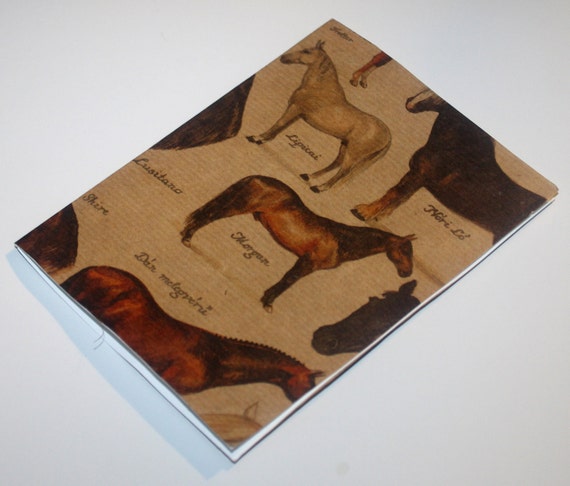
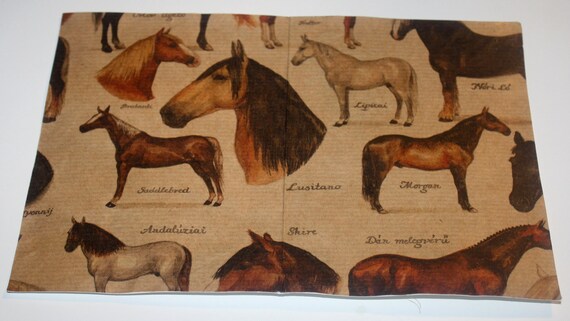
I listed this new Horse Lover's Greeting Card that would be perfect for animal lovers. This card would also be good for horse related events such as horse back riding shows or the Kentucky Derby:


What's your favorite animal?


What's your favorite animal?
Subscribe to:
Comments (Atom)